The below workflow only needs to be complete with each NPCC patients ONCE – In their initial NPCC onboarding appointment.
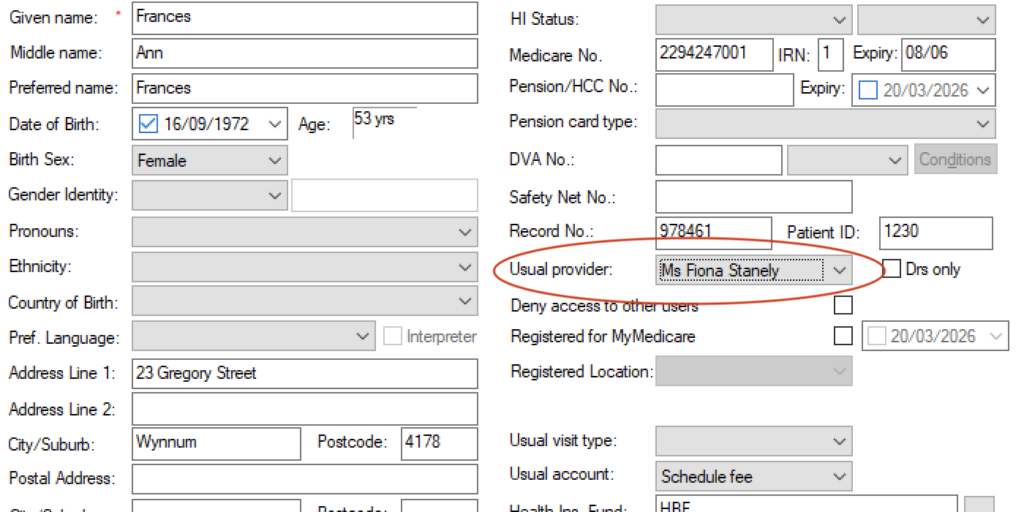
1. Open patient clinical record in BP. Confirm patient’s usual provider is correct in the BP demographic window (F10)
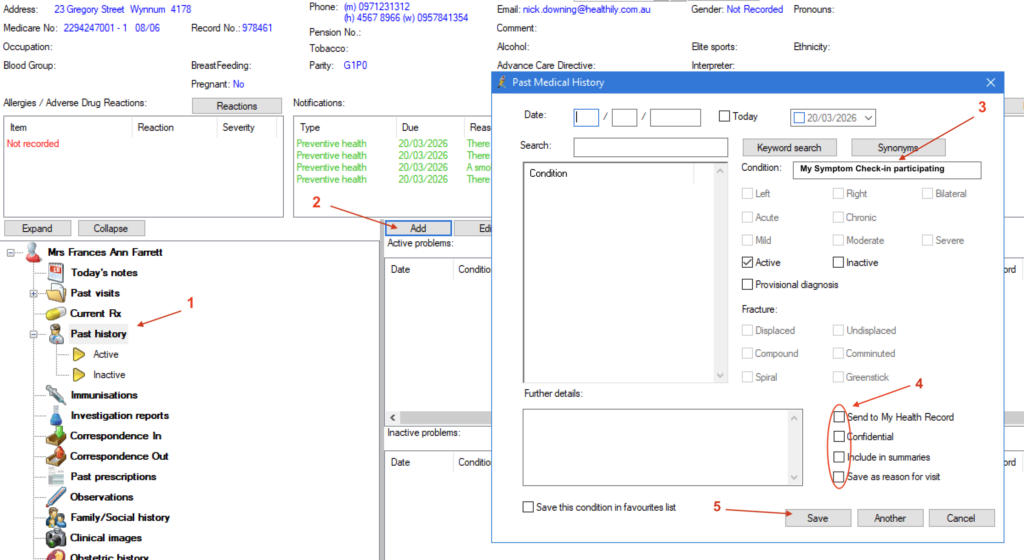
2. Add to patient’s past history in BP Clinical record: ‘My Symptom Check-in participating’
3. Open and Login to GoShare PSI which can be found by searching for ‘GoShare’ in the windows task bar at the bottom of the screen

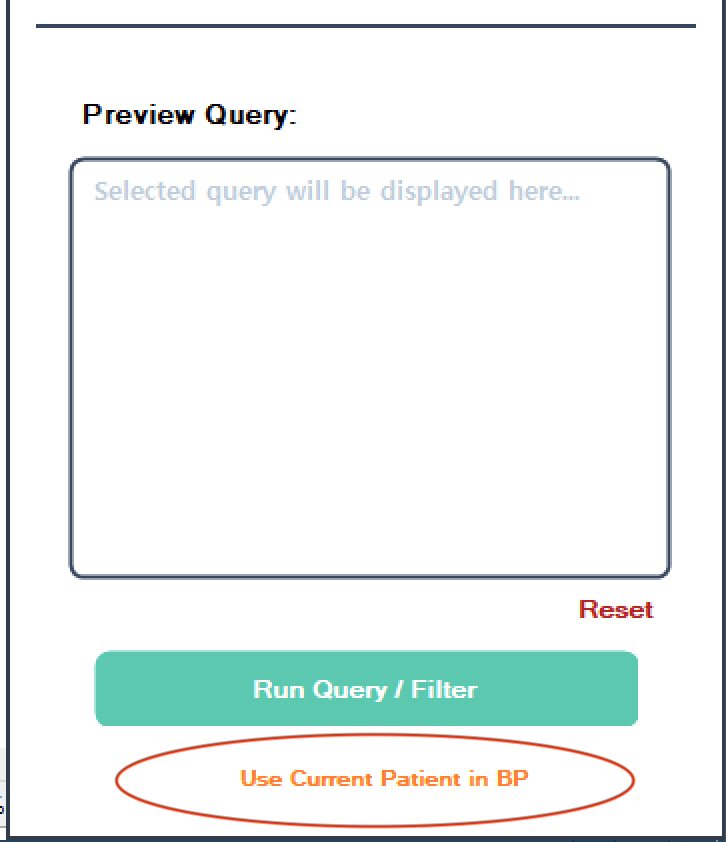
4. Click use current patient in GoShare PSI
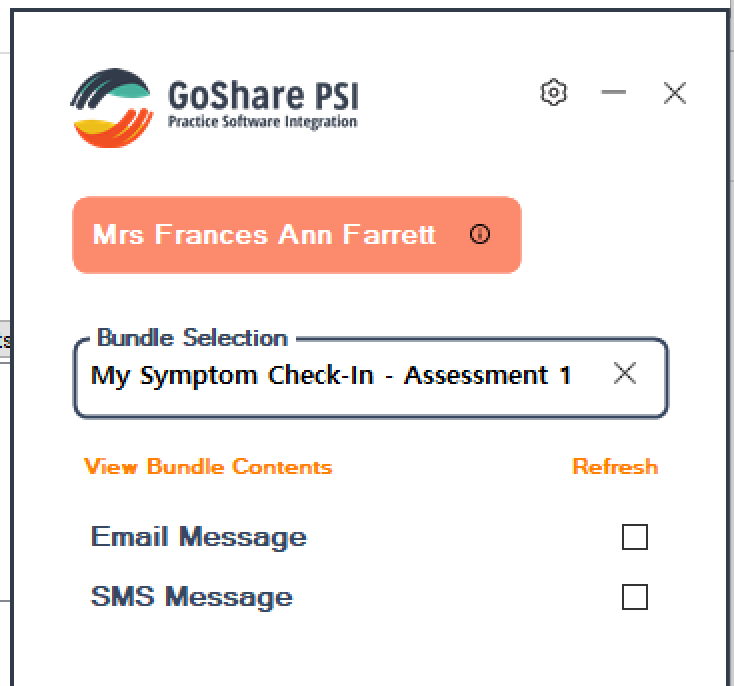
5. Click into ‘Bundle Selection’ box to display bundles to send and select: My Symptom Check-in – Assessment 1′
6. Tick ‘Send to alternate recipient?’ check box at the bottom of the screen
7. Enter your email address ie. nurse@gppractice.com.au, click save, then Send bundle. ** You do not need to enter a mobile number in this screen.
8. Find the email from ‘GoShare Healthcare’ in your email inbox, click link in email to open Assessment 1.
9. Complete assessment on your computer with the patient, note that the completed Assessment 1 will import into the Patient’s record in BP. You will also receive an email alert to notify the assessment is complete.
Sending My Symptom Check-In Assessment 2 (GenPal tool)
1. After completing Assessment 1, Send Assessment 2 (GenPal tool) to the patient’s mobile phone.
Note: For patients that cannot use a mobile phone, Assessment 2 can be completed on the patient’s behalf by choosing ‘Send to alternate recipient’, sending to nurse email, and completing the assessment on the nurse computer (in both instances of completing this for the first time, and followup visits).
2. Guide the patient to complete the assessment on their phone – explaining they will next receive this in 3 weeks time at home. Note with patient that they will receive appropriate education to address any symptoms rated moderate or severe on the final screen.
- An automatic follow up with Check-in will be sent at 10am the following day if any symptoms were rated greater than or equal to 7.
Note: On every patient completion of Assessment 2, the following notifications are sent:
- An email to the inbox of the GoShare sender – I.e. the person that was logged into GoSharePSI at time of send (usually the Nurse)
- Completed assessment is delivered to the BP inbox of either: Patient’s usual provider OR the BP logged in user at time of send – depending on preferences set by practice with GoShare support team.
3. Once patient has completed Assessment 2 on their phone, they may then want to discuss symptom management where appropriate during consult.
4. Schedule ongoing 6 weekly automated check-in with GoShare – With the first send, 3 weeks away – 10am. Explain to patient that if they do not complete assessment online, they will receive a call 3 hours later at 1pm and can complete the assessment over the phone with the digital assistant.
How to schedule to Automated 6 weekly My Symptom Check-in (only to be complete after initial Assessments 1 and 2 completed, above)
1. Click here and log in to the GoShare online website OR visit goshare.com.au, sign in, and click the clock icon: 
2. Ensure that ‘6 week My Symptom Check-in’ is selected on the left, with the same larger heading in the middle of the screen
3. Click Send Program on the right

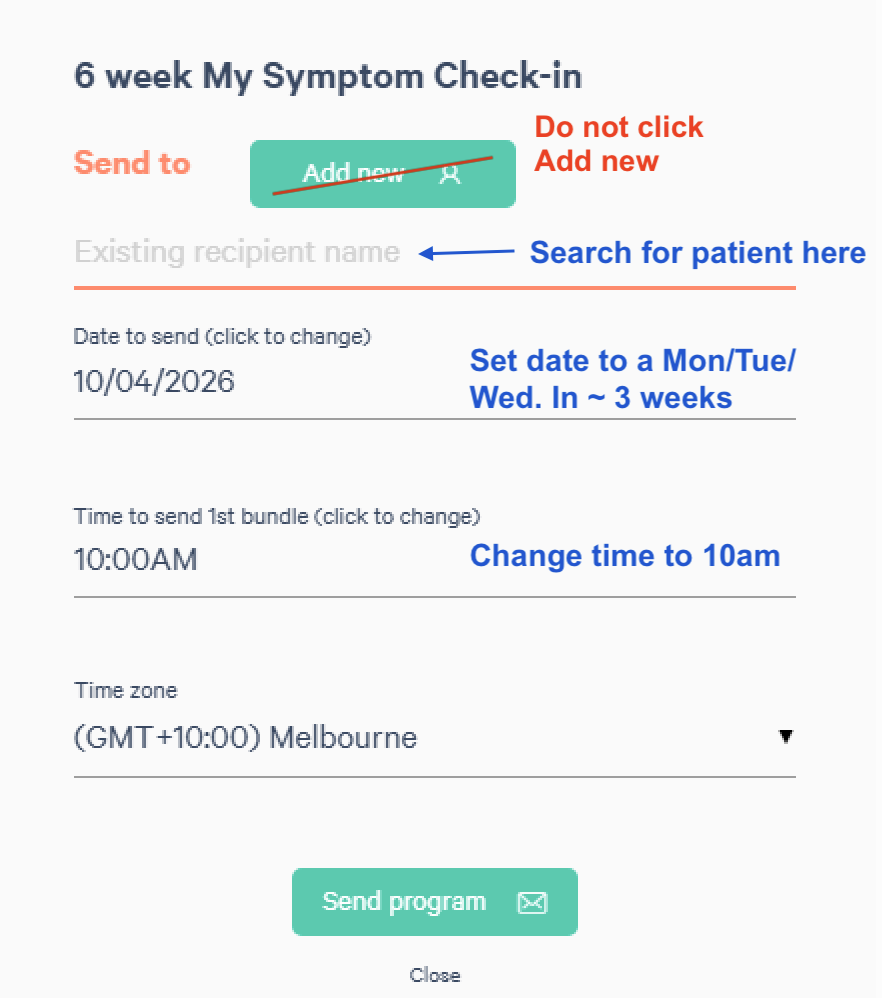
4. Search for your patient name which will have copied from Best Practice. Do not add a new patient.
5. Set the date to begin the automatic send to 3 weeks from today – Click on the date in ‘Date to send’ and you will be presented with an inbuilt calendar.
6. Set time to 10am – Ensure you double check ‘AM ‘ is selected. The time defaults to PM based on current time of day.
7. Confirm the Time Zone correctly reflects the location of your practice – If looking for cities other than Syd or Mel, click the timezone drop down and scroll UP.
8. Click ‘Send Program’
9. And finally, book in to Best Practice 6 weekly appointments in person with the patient, with the next appointment, 6 weeks from today’s date. Set the appointment to the new ‘My Symptom Check-in’ appointment type.
Book patient 6 weekly appointments in Best Practice
1. Open BP diary, find a suitable day to see the patient in the practice in 6 weeks time.
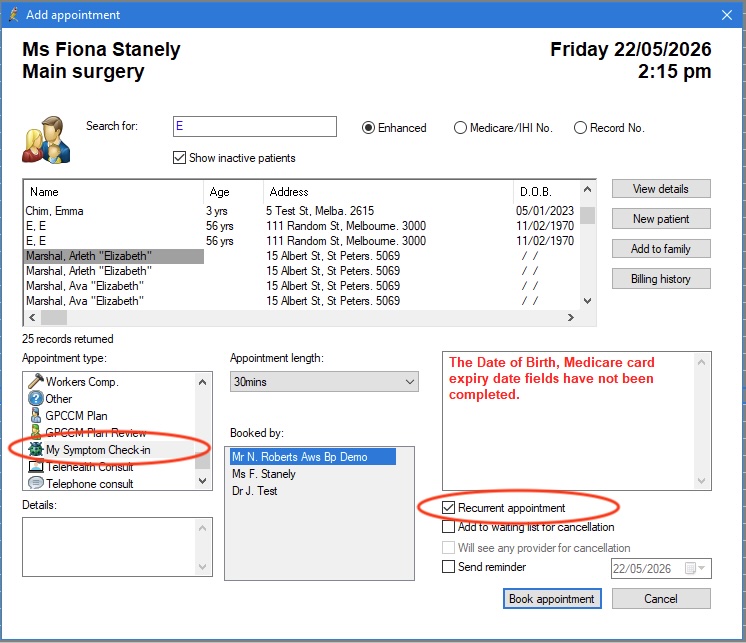
2. In the edit appointment screen, select the ‘My Symptom Check-in appointment type, and ensure ‘Recurrent appointment’ is ticked prior to click the ‘Book appointment’ button.
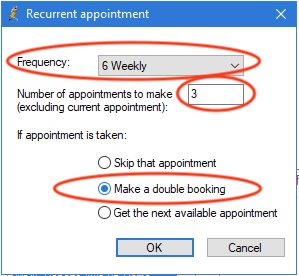
3. On the next ‘Recurrent appointment’ pop-up, choose a Frequency of ‘6 Weekly’, ‘3’ appointments to make, and select ‘Make a double booking’ option.
4. You will be presented with a summary of the 3 future appointments booked. Read these to to patient to confirm and adjust individual appointments if needed.